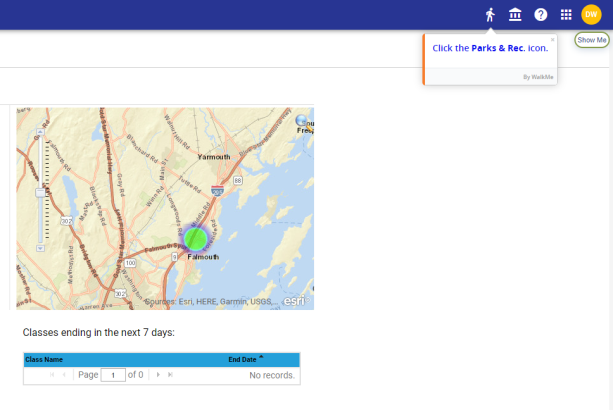
Help Menu
System-Wide
Clicking the Help icon  in the omnibar opens a new help menu containing the following options:
-
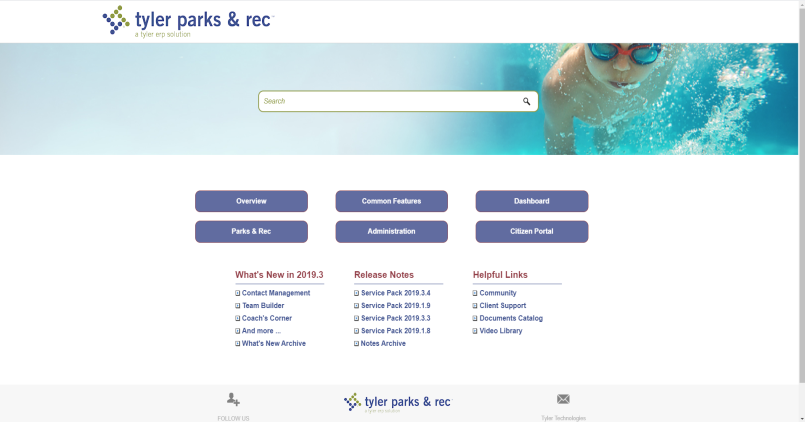
 launches Help Central.
 -
 launches MyView to let you record software bugs and upload the recordings to new or existing CRM cases.
 -
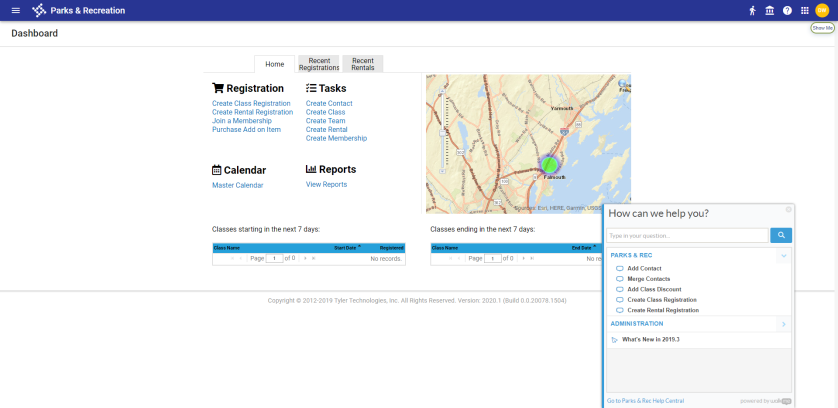
 launches Show Me, a menu of walk-throughs and other resources to assist you in using product features.
 Help Central
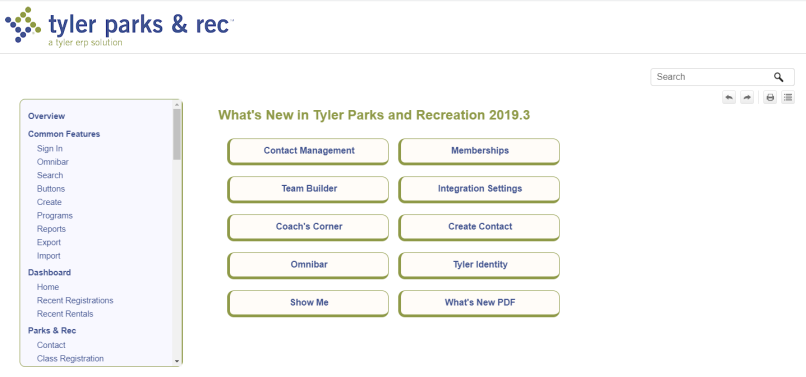
This site provides help in using the features and functions of the Parks & Rec system. It includes links to videos and reviews of the latest features, release notes and more:
MyView
Selecting this option navigates you to an initiation page on a new tab. Once you accept terms and conditions, the start-up page displays:
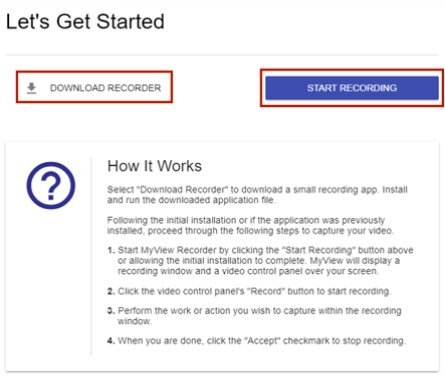
If you have not already done so, download the screen recorder from this page, and click the START RECORDING button.
Your browser prompts you to open the recorder. Once the recorder opens, navigate back to your app, click the RECORD button on the recorder, and begin your recording.
Make sure to keep the MyView tab open.
Recordings may be uploaded to CRM cases.
For more details, click here.
Show Me
For on-screen guidance in completing tasks, try this option. A searchable menu of tasks displays:
Select a task to launch a step-by-step: